To compress one short video to H.264 (a common video format), a browser tool is worth trying. For long recordings or regular batches, look at HandBrake first: it is a desktop app with a queue and detailed settings. If HandBrake already does what you need, there is no reason to switch.
HandBrake’s features below come from its official documentation, checked on 2026-09-11. This is not a measured comparison: the same video was not encoded with both tools.
Choose the job first
| What you need | Try first | Check before you use the result |
|---|---|---|
| Compress one short video to H.264 MP4 | Browser compressor | Readable text, sound and the actual file size |
| Queue several recordings | HandBrake | Check one result before adding the rest |
| Encode to H.265 or AV1 | HandBrake or another app that supports them | Whether the encoder is available and the recipient’s player can play it |
| Use hardware encoding such as NVENC (encoding on the graphics card) | HandBrake on supported hardware | GPU, driver and encoder support |
| Fit under an attachment size limit | Target-size compression | The real limit and the output size in bytes |
| Change the container without re-encoding the video | Remuxing guide | Whether the new container accepts the source streams |
HandBrake’s feature list describes its queue and encoders. HandBrake always re-encodes video (it has no video passthrough), and it does not remove copy protection. See what HandBrake does and does not do.
Try one browser conversion
- Keep the original. Test with a short copy that contains nothing private.
- In Compress, start with quality mode, CRF 23, the original resolution and the fast preset. CRF sets the quality: a lower number gives better quality and a bigger file. These are starting values, not a copy of a HandBrake preset.
- Save the output and play the beginning, middle and end in the recipient’s app. Check small text, sound, orientation and length.
- Decide whether the video still does its job, not only whether the file got smaller.
| Result | What to do next |
|---|---|
| Small text is unreadable | Start again from the original with a lower CRF, and keep the resolution |
| Quality is fine but the file is too big | Compare stronger compression, a short excerpt and sending a link |
| At the size you need, the video is unusable | Send an excerpt, or share the original through a link, instead of compressing the whole recording harder |
| Loading or encoding stops | Try a shorter video. If it keeps stopping, use a desktop app |
| Orientation or colours change | Go back to the original and check its rotation or HDR handling |
Compressing an already compressed copy does not bring back lost detail. Always start again from the original.
Equal CRF does not mean equal output
CRF does not set a file size. The content, encoder version, filters, audio and output resolution all change the result. Choosing a preset with the same name does not make the conditions the same.
To compare, use the same original and write down these items yourself. Leave anything you did not measure blank.
| Record | Why it matters |
|---|---|
| Video codec, resolution and frame rate | So you do not compare two different jobs |
| Audio tracks and audio settings | A smaller file may have lost its audio |
| Actual output size in bytes | The real result, which can differ from the target you set |
| Loading time and encoding time, separately | The first-use loading does not happen on every run |
| Checks of text, motion, sound and orientation | A smaller file is not always usable |
ffmpeg.wasm is FFmpeg built to run inside a web browser. Its performance page shows different results for desktop (native) FFmpeg and the browser (WebAssembly) version. Those figures come from its own test setup; they do not predict speed on this site or on a phone. Hardware acceleration is not the only reason for the gap.
See a real compression example
The comparison of three compression settings shows measured file sizes and the same frame from each output (test machine). This is the CRF 28 output:
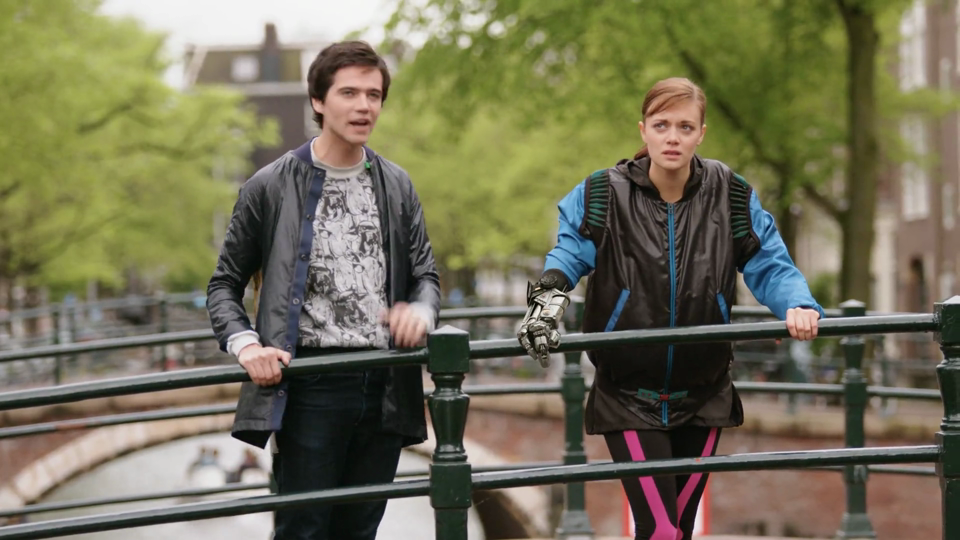
It was made on 2026-09-24 with desktop FFmpeg 8.1 on Windows, from a 1080p, ten-second clip without audio. It is not HandBrake or browser-tool output. The image is scaled down to 960 pixels wide. The linked article gives the source frame, the test conditions and the file hashes. Source: Tears of Steel (CC) Blender Foundation | mango.blender.org, CC BY 3.0; cropped from the 4K version, encoded and resized.
Device, network and privacy limits
The browser compressor converts the video on your device and does not upload it. Loading the page and the processing program still uses the network. HandBrake also converts local videos without uploading them to a cloud service.
The browser tool accepts files up to 500 MB. That does not mean every file under 500 MB will finish. A phone can run out of memory with a smaller file, or stop processing when you switch apps. HandBrake also needs enough storage and memory, and it has format limits.
Closing the tab does not delete saved videos, download history or the browser cache. Do not use sensitive footage on a shared computer, and use only tools your organisation has approved.
Download HandBrake from its official site. If your operating system warns you about the app, check where it came from, its signature and the official instructions. Do not turn off security protection just to get rid of a warning you cannot explain.