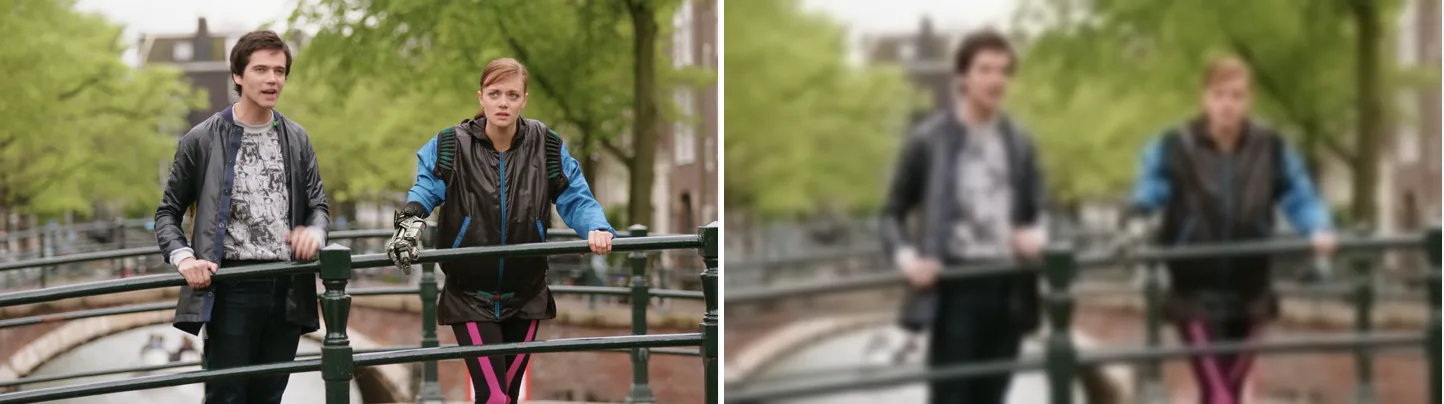
Left is the original, right is boxblur=12:2: a radius of 12, applied twice.
Source: Tears of Steel (CC) Blender Foundation | mango.blender.org, CC BY 3.0. One frame of the film, processed with the filter shown.
Basic Command
Light Blur
ffmpeg -i input.mp4 -vf "boxblur=2:1" output.mp4The two values are luma_radius (how far the blur reaches, in pixels) and luma_power (how many times the blur runs). 2:1 gives a light blur.
Strong Blur
ffmpeg -i input.mp4 -vf "boxblur=10:3" output.mp4A radius of 10 with 3 passes gives a strong blur. To make edges crisper instead, sharpen with the unsharp filter.
Parameter Reference
boxblur=luma_radius:luma_power[:chroma_radius:chroma_power[:alpha_radius:alpha_power]]Luma is the brightness of the picture, chroma is its color, and alpha is its transparency.
| Parameter | Meaning | Default |
|---|---|---|
luma_radius |
Blur radius for luma | 2 |
luma_power |
Number of blur passes | 2 |
chroma_radius |
Blur radius for chroma | Same as luma_radius |
chroma_power |
Number of passes for chroma | Same as luma_power |
alpha_radius |
Blur radius for alpha | Same as luma_radius |
alpha_power |
Number of passes for alpha | Same as luma_power |
Blur Luma Only While Preserving Color
ffmpeg -i input.mp4 -vf "boxblur=luma_radius=10:luma_power=3:chroma_radius=0:chroma_power=0" output.mp4With chroma_radius=0 the color channels are not blurred. Use this when you only want to soften fine detail in the brightness.
Use Named Arguments
Values given only by position are easy to mix up. Named options are clearer:
ffmpeg -i input.mp4 \
  -vf "boxblur=luma_radius=5:luma_power=2" \
  output.mp4
Effect of the Iteration Count (power)
Each extra pass makes the blur smoother. After a few passes it comes close to a Gaussian blur.
luma_power |
Character |
|---|---|
1 |
Plain box blur |
2 |
Slightly smoother |
3 |
Close to Gaussian |
4+ |
Even smoother (but slower) |
Blur the Entire Frame (Privacy)
ffmpeg -i input.mp4 -vf "boxblur=20:5" output.mp4This blurs the whole frame evenly, people included. It cannot blur only the background. To blur part of the frame, see the next section.
Blur Only a Specific Region
Cut out the region with crop, blur it, and put it back on the original frame with overlay. For faces and license plates, including ones that move, see how to blur a region of a video. It also covers mosaics.
ffmpeg -i input.mp4 \
  -vf "split[a][b]; \
    [a]crop=200:100:50:50,boxblur=15:3[blurred]; \
    [b][blurred]overlay=50:50" \
output.mp4crop=W:H:X:Y— a region 200 wide and 100 tall, with its top-left corner at (50, 50)overlay=X:Y— puts the blurred region back at (50, 50) on the original frame
Apply to Still Images
ffmpeg -i input.jpg -vf "boxblur=5:2" output.jpgMeasured: time and size
The measured command:
ffmpeg -i input.mp4 -vf boxblur=10:3 -c:v libx264 -crf 23 -preset medium -an output.mp4| Metric | Measured |
|---|---|
| Wall time | 59.37 s (2.02x realtime) |
| Output size | 14.7 MB |
| Versus an unfiltered re-encode | -83% |
Test machine: Intel Core i9-14900KF (32 threads), FFmpeg 8.1 (gyan.dev build), Windows. Source: 1920x1080, 30 fps, 120 s, 351.4 MB H.264 (Big Buck Bunny, looped, CC BY 3.0). Run on 2026-09-05, one command at a time. The raw numbers are in the dataset.
Reading the numbers
Re-encoding the same source with the same settings and no filter took 27.97 s. With boxblur it took 59.37 s. The extra time is the blur. The blurred picture is actually quicker for x264 to encode, because it has less detail (see the file size below). In the same run, a 720p downscale took 18.43 s, curves 42.01 s and colorbalance + eq 53.29 s. boxblur is the slowest of these because it runs on a single thread and repeats the blur luma_power times. The radius barely changes the time.
It is still faster than real time. On the 32-thread test machine, the 120-second clip took 59.37 s, less than half its length.
The file is 83% smaller because the blur removes detail. With CRF (x264’s constant-quality mode), x264 spends bits to keep the visual quality steady. Blurring removes the fine detail those bits would pay for, so there is much less to encode: 14.7 MB against 86.26 MB for the re-encode with no filter.
Blurring cannot be done with -c copy. In the same run, jobs that only copied the streams into a new container took 0.41–0.49 s. A blur changes the pixels, so the video has to be decoded, filtered and re-encoded. When you estimate how long a job will take, first check whether it needs a re-encode at all.
Comparison with gblur (Gaussian Blur)
| Filter | Character | Time |
|---|---|---|
boxblur |
Even blur; closer to Gaussian with more passes. Single-threaded | 2.71 s (boxblur=10:3) |
gblur |
Smooth Gaussian blur. Multi-threaded | 0.66 s (gblur=sigma=13) |
unsharp |
Sharpens, or blurs with a negative amount. Multi-threaded. Its matrix size is capped, so it cannot blur strongly | 0.76 s (unsharp=13:13:-1.5:5:5:0.0) |
The times are for the filter alone: 300 frames of uncompressed 1080p sent to -f null, which writes no file. Each filter was run once on a Core i9-14900KF with FFmpeg 8.1. With no filter, the same test took 0.27 s. gblur=sigma=13 blurs about as strongly as boxblur=10:3. boxblur’s time depends on the number of passes, not the radius: boxblur=2:3 took 2.61 s, boxblur=100:3 2.85 s, boxblur=10:1 1.75 s and boxblur=10:6 5.98 s.
Use boxblur for simple blurring and gblur when the look matters more. Do not pick boxblur for speed: on a multi-core machine, gblur is faster.
Common Mistakes
NG: a radius too large for the frame (on 1080p the limit is 270, unless you set a smaller chroma_radius)
ffmpeg -i input.mp4 -vf "boxblur=600:1" output.mp4
The radius can be at most half the shorter side of the picture it blurs. For 1080p luma that is 540, so 600 fails with Invalid luma_param radius value 600, must be >= 0 and <= 540. Most video stores color at half the width and height (4:2:0), so the chroma limit is 270, and chroma_radius copies luma_radius unless you set it. So 271 to 540 fail too: 300 gives Invalid chroma_param radius value 300, must be >= 0 and <= 270. For a larger luma radius, give chroma a smaller one, as in boxblur=500:1:250:1. 0 is allowed but does not blur.
Related Filters
gblur— a Gaussian blurunsharp— sharpens, and can also blursmartblur— blurs but keeps edges sharppixelize— mosaic (pixelation)
Frequently Asked Questions
boxblur vs gblur — which should I use?
boxblur is fine for light softening, such as for a thumbnail. gblur gives a smoother blur and, because it uses several threads, finishes faster than boxblur at a similar strength. Neither is a safe way to hide faces or text, because a blur keeps traces of the original. For anything that must stay hidden, cover it with an opaque fill (drawbox with t=fill).
How do I blur only a region?
Crop the region, blur it, then overlay it back at the same position. This command uses the input [0] twice, so it has to go in -filter_complex (with -vf it fails): ffmpeg -i input.mp4 -filter_complex "[0]crop=200:100:50:50,boxblur=10[b];[0][b]overlay=50:50" output.mp4. The split version shown earlier works with -vf.
Why is my blur weaker than expected?
The first boxblur value is a radius in pixels, not a strength. A radius of 2 averages only 5×5 pixels. For a visible blur on 1080p footage, use 8–15.
Can I apply multiple blur passes?
Yes. Chain them, as in boxblur=10:1,boxblur=10:1, or raise luma_power. Two light passes look closer to a Gaussian blur than one strong pass.
Does it preserve the alpha channel?
The alpha channel is kept, but it is blurred too. Unless you set alpha_radius or alpha_power, alpha gets the same blur as luma, so hard transparency edges turn soft. To leave alpha untouched, add alpha_power=0, for example boxblur=4:1:alpha_power=0. RGBA input is converted automatically to gbrap, a format boxblur accepts, before blurring.