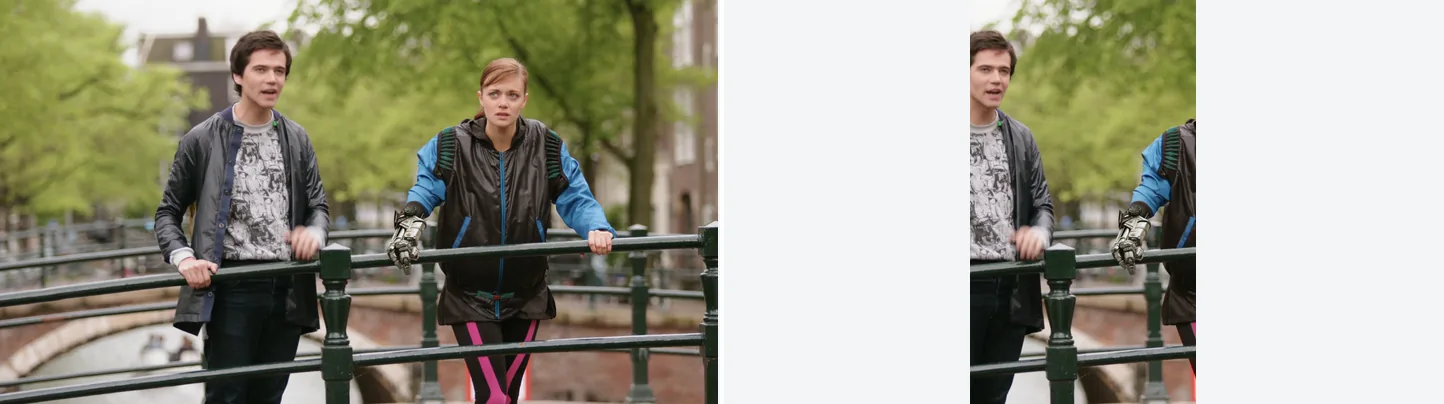
Left is the 16:9 original, right is crop=ih*9/16:ih,scale=1080:1920. The crop cuts away a large part of both sides.
Source: Tears of Steel (CC) Blender Foundation | mango.blender.org, CC BY 3.0. One frame of the film, processed with the filter shown.
Vertical Video Format Basics
| Item | Value |
|---|---|
| Aspect ratio | 9:16 |
| Resolution (standard) | 1080×1920 px |
| Resolution (minimum) | 540×960 px (TikTok in-feed ad requirement) |
Method 1: Center Crop (crop)
Cut a vertical strip out of the middle of the horizontal video. This works best when the subject is in the center.
1920×1080 → 1080×1920 Center Crop
Scale the height up to 1920, then cut a 1080-pixel-wide strip from the center:
ffmpeg -i input.mp4 -vf "scale=-1:1920,crop=1080:1920:(iw-1080)/2:0" output_vertical.mp4Center-Crop a Square and Add Black Bars
Cut a 1080×1080 square from the center of a 1920×1080 video and place it in a vertical frame with black bars above and below:
ffmpeg -i input.mp4 -vf "crop=1080:1080:(iw-1080)/2:(ih-1080)/2,scale=1080:1920:force_original_aspect_ratio=decrease,pad=1080:1920:(1080-iw)/2:(1920-ih)/2" output_vertical.mp4Method 2: Black-Bar Padding (pad)
Shrink the whole video and add black bars above and below. Nothing is cut off, but the bars are large and obvious.
Fit a Horizontal Video into the Vertical Format with Black Bars
ffmpeg -i input.mp4 -vf "scale=1080:-2,pad=1080:1920:0:(1920-ih)/2:black" output_padded.mp4Pad with a Colored Background
ffmpeg -i input.mp4 -vf "scale=1080:-2,pad=1080:1920:0:(1920-ih)/2:color=0x1a1a2e" output_padded_color.mp4Method 3: Blurred-Background Padding (Recommended)
A blurred copy of the video fills the frame as the background, and the original sits on top. There are no black bars, and the result looks natural.
ffmpeg -i input.mp4 -filter_complex "[0:v]scale=1080:1920:force_original_aspect_ratio=increase,crop=1080:1920,boxblur=20:3[bg];[0:v]scale=1080:-2[fg];[bg][fg]overlay=(W-w)/2:(H-h)/2[out]" -map "[out]" -map "0:a?" -c:v libx264 -b:v 8M -pix_fmt yuv420p -c:a copy output_blur_bg.mp4-map "[out]" alone gives video only, so -map "0:a?" adds the audio. The ? stops the command from failing when the video has no audio.
How it works:
[bg]: Scale the original up, keeping its aspect ratio, until it covers 1080×1920. Crop off what sticks out, and blur it for the background[fg]: Shrink the original video to a width of 1080 (keeping the aspect ratio)overlay: Place it in the center, on top of the blurred background
Method 4: Crop at a Specific Position
If the subject is not in the center, move the crop.
In these commands, x is a position in the enlarged frame after scale=-1:1920 (about 3413 px wide for a 1920×1080 source). To try a crop in the browser, the crop video tool trims the percentage you enter from each side.
Crop with the Left Side Prioritized (x=0)
ffmpeg -i input.mp4 -vf "scale=-1:1920,crop=1080:1920:0:0" output_left.mp4Crop with the Right Side Prioritized
ffmpeg -i input.mp4 -vf "scale=-1:1920,crop=1080:1920:iw-1080:0" output_right.mp4Crop at an Arbitrary x Coordinate
ffmpeg -i input.mp4 -vf "scale=-1:1920,crop=1080:1920:300:0" output_custom.mp4Checking the Output Size
Check the width, height and sample aspect ratio (SAR, the shape of each pixel) of the result with ffprobe. If the SAR after 1080,1920 is 1:1, N/A, or very close to 1:1, such as 10240:10239, the video is 9:16.
ffprobe -v error -select_streams v:0 -show_entries stream=width,height,sample_aspect_ratio -of csv=p=0 output_vertical.mp4A SAR such as 4:3 or 64:45 means the source has non-square pixels (common with DVDs and older camcorders), and the output will not display as 9:16. Add scale=iw*sar:ih,setsar=1, to the start of the filter to make the pixels square first.
Keeping the Audio
Commands with -vf keep the audio without extra options; in MP4 it is re-encoded to AAC. Add -c:a copy to copy it unchanged, or -c:a aac -b:a 256k to set the bitrate. Commands that map "[out]" from -filter_complex also need -map "0:a?", or the output has no audio.
ffmpeg -i input.mp4 -vf "scale=-1:1920,crop=1080:1920:(iw-1080)/2:0" -c:v libx264 -b:v 8M -pix_fmt yuv420p -c:a aac -b:a 256k output_vertical.mp4Basic Syntax of the crop Filter
crop=w:h:x:y| Parameter | Description |
|---|---|
w |
Width to crop |
h |
Height to crop |
x |
Crop start position (from the left) |
y |
Crop start position (from the top) |
You can use variables such as iw (original width) and ih (original height).
Related Articles
- Scaling Video (the scale filter)
- Adding a Blur Effect with the boxblur Filter
- Rotating and Flipping Video (rotate/hflip/vflip)
FAQ
What is the recommended resolution for TikTok?
1080×1920 (9:16) is the safest choice. TikTok re-encodes uploads itself.
Does converting horizontal video to vertical reduce quality?
From a 1920×1080 source, yes. A 9:16 crop keeps only about 608 pixels of the original width, and Method 1 scales that up to 1080×1920, so it looks softer than the original. Adding black bars above and below to reach 9:16 is not recommended, because it makes the video less pleasant to watch.
My vertical video shot on an iPhone plays sideways
The iPhone stores the orientation as rotation metadata. Some players ignore it and play the video sideways. Re-encode it, for example with ffmpeg -i in.mov -c:v libx264 -c:a copy out.mp4. FFmpeg turns the picture itself to match the metadata, so every player shows it upright. Do not add transpose, or the picture is rotated twice.
Should I create separate files for YouTube Shorts and TikTok?
Usually one file works for both. Both platforms recommend 1080×1920; only the maximum length differs. Shorts can be up to 3 minutes (raised from 60s in late 2024). TikTok’s limit changes from time to time, so check TikTok’s help center before posting a long video.