If a phone video plays sideways on your PC, or you need a mirror image, one FFmpeg command fixes it. There are two ways to rotate. You can turn the pixels themselves, which re-encodes the video and works in every player. Or you can change only the rotation metadata, which is fast and lossless, but some players ignore it.
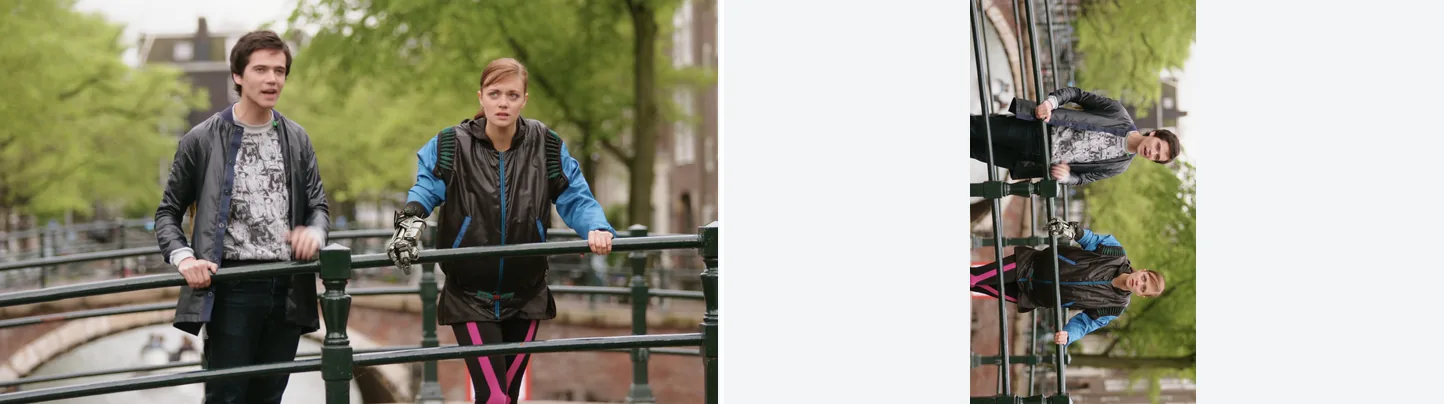
Left is the original, right is transpose=1 (90 degrees clockwise). Rotating swaps width and height, so the right panel has space on both sides.
Source: Tears of Steel (CC) Blender Foundation | mango.blender.org, CC BY 3.0. One frame of the film, processed with the filter shown.
transpose Filter Value Reference
The transpose filter turns the picture in 90° steps. Pick the value from this table:
| Value | Alias | Transformation |
|---|---|---|
0 |
cclock_flip |
90° counter-clockwise + vertical flip |
1 |
clock |
90° clockwise (most common case) |
2 |
cclock |
90° counter-clockwise |
3 |
clock_flip |
90° clockwise + vertical flip |
Command Examples
1. 90° Clockwise
# Rotate the picture 90 degrees clockwise
ffmpeg -i input.mp4 -vf transpose=1 -c:a copy output.mp4transpose=1— 90° clockwise-c:a copy— copy audio without re-encoding
Some videos carry rotation metadata, such as phone videos shot in portrait (check with example 7). FFmpeg applies that metadata automatically when it re-encodes. For these videos,
ffmpeg -i input.mp4 -c:a copy output.mp4with notransposealready gives the right orientation, and addingtransposerotates the picture a second time. To ignore the metadata and rotate only the pixels, put-noautorotatebefore-i.
2. 90° Counter-Clockwise
ffmpeg -i input.mp4 -vf transpose=2 -c:a copy output.mp43. 180° Rotation
# Chain transpose twice for 180°
ffmpeg -i input.mp4 -vf "transpose=1,transpose=1" -c:a copy output.mp4

# Alternative: hflip + vflip (may be faster)
ffmpeg -i input.mp4 -vf "hflip,vflip" -c:a copy output.mp4
4. Horizontal Flip (Left-Right Mirror)
# Mirror left to right — selfie videos, mirror effects
ffmpeg -i input.mp4 -vf hflip -c:a copy output.mp4
5. Vertical Flip (Top-Bottom Mirror)
# Mirror top to bottom (for footage shot upside down, use the 180° rotation in example 3)
ffmpeg -i input.mp4 -vf vflip -c:a copy output.mp4
6. Rotate + Resize in One Pass
# Rotate 90° clockwise, then resize to 720 wide (1920x1080 becomes 720x1280)
ffmpeg -i input.mp4 -vf "transpose=1,scale=720:-2" -c:v libx264 -crf 23 -c:a copy output.mp4
Put
transposebeforescale. The scale filter then works with the width and height after rotation.
7. Check Smartphone Video Rotation Metadata
# Inspect the rotation metadata
ffprobe -v error -select_streams v:0 \
  -show_entries stream_side_data=rotation \
  -of default=noprint_wrappers=1 input.mp4
rotation=-90 is common for iPhone portrait video. It means “show this turned 90° clockwise”, the same direction as transpose=1. rotation=90 means counter-clockwise, like transpose=2. No output means the file has no rotation metadata.
Metadata Rotation vs. Re-encoding Comparison
| Method | Processing | Quality | Compatibility | Speed |
|---|---|---|---|---|
Metadata edit (-c copy) |
Rotation info only | No loss | Player-dependent | Fast |
transpose filter |
Full re-encode | Slight change | Works in all players | Normal |
Edit the metadata when you want to avoid re-encoding and keep full quality. Use the transpose filter when the video must display correctly in every player.
Metadata-only fix:
# Reset rotation metadata to 0 without touching video pixels
ffmpeg -display_rotation 0 -i input.mp4 -c copy output.mp4
Quick Reference Table
| Goal | Command |
|---|---|
| 90° clockwise | -vf transpose=1 |
| 90° counter-clockwise | -vf transpose=2 |
| 180° | -vf "transpose=1,transpose=1" or "hflip,vflip" |
| Horizontal flip | -vf hflip |
| Vertical flip | -vf vflip |
| 90° clockwise + vertical flip | -vf transpose=3 |
Option Reference
| Option / Filter | Meaning | Use When |
|---|---|---|
-vf transpose=1 |
90° clockwise rotation | Fixing sideways footage that has no rotation metadata |
-vf transpose=2 |
90° counter-clockwise | Correcting over-rotated footage |
-vf hflip |
Horizontal mirror | Selfie flip, mirror effect |
-vf vflip |
Vertical mirror | Top-bottom mirror effect |
-c copy |
No re-encoding | Metadata-only rotation |
-c:a copy |
Lossless audio copy | When applying video filters |
Troubleshooting
Problem 1: Video Is Still Tilted After Rotation
Cause: The wrong transpose value. 1 is clockwise, 2 is counter-clockwise.
Fix: Try the other value:
# Try transpose=1 first; if the result is backwards, use transpose=2
ffmpeg -i input.mp4 -vf transpose=1 -c:a copy test.mp4
Problem 2: Unrecognized option 'vf=transpose=1'
Cause: -vf and its value are joined with =. FFmpeg needs a space between an option and its value.
Fix: Put a space after -vf:
# Wrong
ffmpeg -i input.mp4 -vf=transpose=1 output.mp4

# Correct
ffmpeg -i input.mp4 -vf transpose=1 -c:a copy output.mp4
Problem 3: Trailing option(s) found and No 180° Rotation
Cause: -vf (or another option) comes after the output file name. FFmpeg ignores options placed after the last output file.
Fix: Put options before the output file name:
# Wrong (option after the output file name)
ffmpeg -i input.mp4 output.mp4 -vf "transpose=1,transpose=1"

# Correct
ffmpeg -i input.mp4 -vf "transpose=1,transpose=1" -c:a copy output.mp4
Problem 4: Video Still Appears Sideways After Metadata Edit
Cause: The player ignores the rotation metadata.
Fix: Re-encode so the pixels themselves are rotated. FFmpeg applies the rotation metadata automatically when it re-encodes, so leave out transpose (adding it would rotate the picture twice):
ffmpeg -i input.mp4 -c:v libx264 -crf 23 -c:a copy output.mp4Problem 5: Resolution Is Unexpected After 90° Rotation
Cause: A 90° rotation swaps width and height (1920×1080 → 1080×1920).
Fix: For a smaller portrait video, add scale after the rotation (example 6). To keep a 1920×1080 frame, scale the rotated picture to a height of 1080 and add black bars at the sides:
# Rotate, then fit into 1920x1080 with black bars left and right
ffmpeg -i input.mp4 -vf "transpose=1,scale=-2:1080,pad=1920:1080:(ow-iw)/2:0" -c:v libx264 -crf 23 output.mp4
FAQ
Q1. Should I always use transpose=1 for sideways smartphone video?
A. No. First run the ffprobe command from example 7. If it shows a rotation value, FFmpeg rotates the video automatically when it re-encodes, so run ffmpeg -i input.mp4 -c:a copy output.mp4 without transpose (adding transpose rotates it twice). If it shows nothing, the pixels themselves are sideways. Use transpose=1 (clockwise) or transpose=2 (counter-clockwise).
Q2. Can I rotate without re-encoding?
A. Yes, by changing only the metadata: ffmpeg -display_rotation -90 -i input.mp4 -c copy output.mp4. -display_rotation takes a counter-clockwise angle, so -90 means 90° clockwise. The pixels stay the same, so the video looks rotated only in players that read the rotation metadata.
Q3. How do I convert iPhone/Android portrait video to landscape?
A. Use transpose=1 to rotate 90° clockwise. FFmpeg applies the rotation metadata first, so transpose turns the portrait picture you see on screen. The aspect ratio changes; add a scale filter if you need a particular size.
Q4. Can I rotate to an arbitrary angle like 45°?
A. Yes, with the rotate filter. Areas outside the original frame become black:
# 45-degree rotation
ffmpeg -i input.mp4 -vf "rotate=PI/4" -c:v libx264 -crf 23 output.mp4
Q5. How do I batch-rotate multiple videos?
for f in *.mp4; do
  ffmpeg -nostdin -i "$f" -vf transpose=1 -c:a copy "rotated_${f}" -y
done