If you need speech turned into caption text, a tool that only burns an existing subtitle file into the video is not enough. Burning in means drawing the text into the picture. Before you pick an app, decide which job you have: turning speech into text, adding something on top of the picture, or editing a whole project.
VEED’s features below come from its official documentation, checked on 2026-09-11. This is not a measured comparison with VEED’s paid plans.
Separate the jobs
| Task | On this site | What to check when choosing |
|---|---|---|
| Turn speech into subtitle text | No automatic transcription | In a service that does it: languages, how much you can use, and how you correct the text |
| Burn captions you already have into the video | Subtitle burn-in from an SRT/VTT file or pasted subtitle text | Wording, timing and readability |
| Add a logo or text | Watermark tool | Your rights to the logo or image, and whether it covers captions or faces |
| Hide part of the picture | Black mask or mosaic | Whether the subject moves out of the selected rectangle |
| Join clips and edit the project again later | No timeline and no saving of project files | A video editor that fits the way you work |
VEED’s subtitle page describes automatic captions, correcting the text, burning captions in and exporting a subtitle file. Check its pricing page and your account to see which features you get. Before you buy, check the export resolution, whether a watermark is added, and the export options.
Keep the source and subtitle file
Burned-in captions become part of the picture. Unlike a separate subtitle track, they cannot be turned off. Keep the original video and the editable subtitle file, so you can fix mistakes and render again from the original.
To try the subtitle tool, use a video of at least five seconds with nothing private in it, and the example below. Each caption is a number, a time range and the text, with a blank line between captions.
1
00:00:00,000 --> 00:00:02,000
Caption 1

2
00:00:02,500 --> 00:00:04,500
Caption 2- Select the video and paste the example into the subtitle field, or select a subtitle file saved as UTF-8.
- Choose the text size and position, process the video and save the result.
- Check the first caption, the half-second gap and the second caption. Japanese captions load a Japanese font automatically (kana and JIS level 1-2 kanji). Simplified Chinese and Korean do not display, so check the characters you will use.
- Check the sound, orientation and length. Then do it again with your real video and corrected captions.
| Problem | Check |
|---|---|
| No captions appear | The times fall within the video’s length, and the SRT/VTT format is valid |
| Characters are missing or garbled | The file is saved as UTF-8. Characters the fonts do not have (rare kanji, simplified Chinese, Korean) show as boxes |
| Text runs off the screen | Line length, line breaks, font size, and the narrow width of vertical video |
| Captions are out of sync with speech | Whether you are using captions made for the uncut video on a trimmed one |
| You find a typo after burn-in | Render again from the original with corrected captions. Do not cover it with more text |
Redaction needs a separate review
The masking tool covers the rectangle you select. It is not automatic face tracking. If the person or the camera moves, the face can leave the covered area. Check the whole output, not only the first frame.
A weak blur does not prove that a face or text is hidden. Even a solid mask can miss part of the frame or part of the video’s length. Voices, subtitles, file tags, reflections, and people or objects that appear later each need their own check.
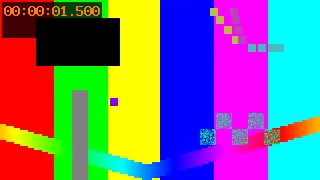
This frame was made with desktop FFmpeg on a synthetic test pattern (measurement data). It is not a VEED comparison, and it does not prove that a real face or document is hidden. The tool page’s measurement examples give the source and the conditions.
Combining several operations
Running separate tools one after another creates in-between files, and the video may be re-encoded at each step. Decide which changes you need before you chain trimming, subtitles, a logo and compression.
If trimming changes the timeline, shift the subtitle times to match the edited video. If you resize after adding captions, check the text again at the final size. If you expect many rounds of changes, consider a video editor that saves your edits as a project. The tools on this site cannot import a VEED project and continue it.
Shared devices and sensitive footage
Processing on your device does not wipe the device, your browsing history or the files you downloaded. Saved files and caches can stay after you close the tab. Loading the pages, processing code and fonts also uses the network. Handle confidential footage only in an environment your organisation has approved, including approval for this site where that is required.
Adding captions or a logo does not remove personal information from the video. Location tags, what the picture shows and what people say are separate issues: see checking and removing video location data.