One FFmpeg command can make a video small enough to email or quick to upload.
In the test below, H.264 at CRF 23 took the test clip from 29.3 MB to 7.12 MB (-75.7%, VMAF 93.29). VMAF is a quality score that compares the result with the source; higher is better.
Command Examples
1. CRF Mode with H.264 (Most Versatile)
ffmpeg -i input.mp4 -c:v libx264 -crf 23 -preset medium -c:a aac -b:a 128k output.mp4-c:v libx264: encode the video as H.264-crf 23: the quality setting, from 0 to 51. Lower means better quality and a bigger file. The default is 23.-preset medium: a balance between encoding speed and compression-c:a aac -b:a 128k: re-encode the audio to AAC at 128 kbps
2. Higher Compression with H.265 (HEVC)
On the test clip, H.265 files were 26–35% smaller than H.264 files with the same VMAF score, and took about twice as long to encode (how this was measured).
ffmpeg -i input.mp4 -c:v libx265 -crf 28 -preset medium -c:a aac -b:a 128k output.mp43. Small-Size Priority (Social Media / Email Attachment)
ffmpeg -i input.mp4 -c:v libx264 -crf 32 -preset fast -vf scale=1280:-2 -c:a aac -b:a 96k output.mp4-crf 32: lower quality for a smaller file-vf scale=1280:-2: shrink to 1280px wide, with the height set automatically to an even number-b:a 96k: a lower audio bitrate as well
4. High-Quality Archive (Time Not a Constraint)
ffmpeg -i input.mp4 -c:v libx265 -crf 22 -preset slow -c:a aac -b:a 192k output.mp45. Bitrate-Controlled Compression (Strict Size Target)
Use this when you need a predictable file size. The bitrate is the amount of data per second, so the file size is roughly bitrate × duration. -b:v sets the average bitrate, so some scenes can go above it. If a platform sets a maximum bitrate, also add -maxrate and -bufsize (for example -maxrate 2000k -bufsize 4000k).
# Video 2 Mbps + audio 128 kbps ≈ 2.1 Mbps total
ffmpeg -i input.mp4 -c:v libx264 -b:v 2000k -c:a aac -b:a 128k output.mp4
6. 2-Pass Encoding (Most Accurate Size Control)
# Pass 1: analyze video (no output generated)
ffmpeg -i input.mp4 -c:v libx264 -b:v 2000k -pass 1 -an -f null /dev/null

# Pass 2: generate the actual output
ffmpeg -i input.mp4 -c:v libx264 -b:v 2000k -pass 2 -c:a aac -b:a 128k output.mp4
Pass 1 creates
ffmpeg2pass-0.log. You can delete it once pass 2 has finished.
Measured Results
These figures come from encoding one test clip; the table below lists the clip and the machine. VMAF predicts how good the video looks to viewers. It does not test for identical pixels, and no single score is a pass mark for every use. Compare scores only when the VMAF model and comparison settings are the same, and look at the frames too. The official VMAF FAQ notes that a video compared with itself need not score 100.
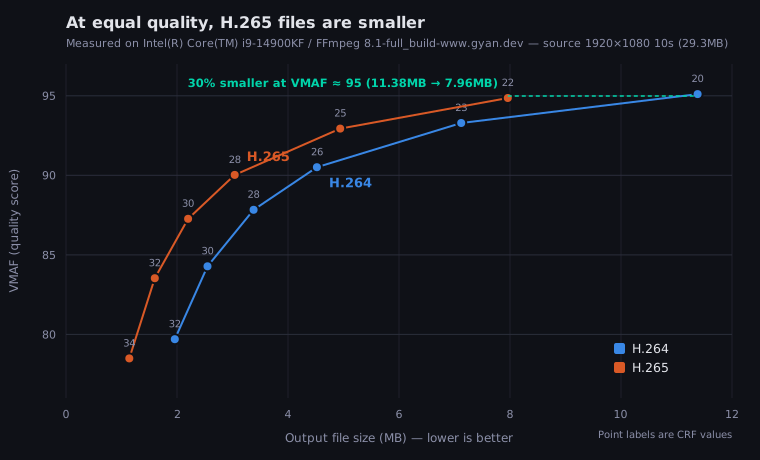
File size runs along the bottom and VMAF up the side. Points nearer the top left are smaller and look better. The number next to each point is its CRF value, and the tables below give the exact figures.
| CPU / GPU | Intel Core i9-14900KF / NVIDIA RTX 4090 |
| FFmpeg | 8.1 (gyan.dev full build) |
| Source | Big Buck Bunny 1920x1080 / 30 fps / 10.0 s / H.264 24.6 Mbps / 29.3 MB (no audio track) |
| Source licence | © Blender Foundation, CC BY 3.0 |
| Measured | 2026-08-28 |
| Size unit | 1 MB = 1,048,576 bytes |
H.264 by CRF (-preset medium)
| CRF | Size | vs source | VMAF | Time |
|---|---|---|---|---|
| 20 | 11.38 MB | -61.1% | 95.11 | 2.23 s |
| 23 | 7.12 MB | -75.7% | 93.29 | 2.05 s |
| 26 | 4.52 MB | -84.6% | 90.51 | 1.89 s |
| 28 | 3.38 MB | -88.4% | 87.83 | 1.82 s |
| 30 | 2.55 MB | -91.3% | 84.28 | 1.77 s |
| 32 | 1.96 MB | -93.3% | 79.70 | 1.76 s |
H.265 by CRF (-preset medium)
| CRF | Size | vs source | VMAF | Time |
|---|---|---|---|---|
| 22 | 7.96 MB | -72.8% | 94.86 | 4.68 s |
| 25 | 4.94 MB | -83.1% | 92.94 | 4.07 s |
| 28 | 3.04 MB | -89.6% | 90.03 | 3.52 s |
| 30 | 2.20 MB | -92.5% | 87.27 | 3.41 s |
| 32 | 1.60 MB | -94.5% | 83.53 | 3.28 s |
| 34 | 1.14 MB | -96.1% | 78.49 | 3.33 s |
The test clip is animation. Other footage gives different sizes at the same CRF; noise and fast motion make files bigger. Use the tables to see the trend, not to predict the sizes you will get.
To estimate the size for your own video before you encode it, enter its resolution, duration and CRF in the file size estimator.
CRF Value Reference
| CRF | Perceived Quality | Use Case | Estimated Size vs. Original |
|---|---|---|---|
| 15–17 | Transparent (near visually lossless) | Production masters | 60–80% |
| 18–20 | Excellent | YouTube upload, archival | 40–60% |
| 21–23 | High (default) | General sharing, web | 25–40% |
| 24–26 | Good | Social media, preview | 15–25% |
| 27–30 | Visible degradation | Email attachments | 8–15% |
| 31–35 | Noticeable artifacts | Minimum file size | 4–8% |
These sizes vary a lot with the content (action, animation, talking heads and so on). On the test clip above, CRF 20 gave 39% and CRF 23 gave 24%. Check the result on your own video.
How much the source content changes the size
Each version below started from the same clip and was encoded with the same -crf 23 -preset medium. Only the source itself was changed.
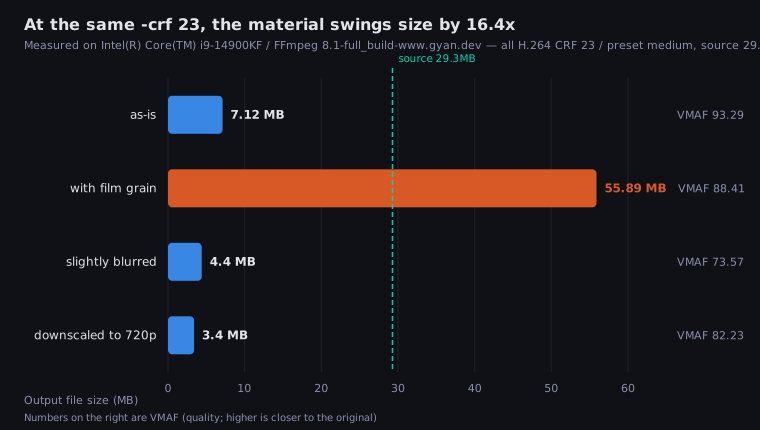
| Source condition | Output size | VMAF | vs source |
|---|---|---|---|
| As-is | 7.12 MB | 93.29 | 24% |
| With film grain added | 55.89 MB | 88.41 | 191% |
| Slightly blurred | 4.40 MB | 73.57 | 15% |
| Downscaled to 720p | 3.40 MB | 82.23 | 12% |
The CRF never changed, yet the output ranged from 3.40MB to 55.89MB, a 16.4x difference. This shows three things:
- Noise can make a compressed file bigger than the original. Adding grain alone pushed the file to 191% of the source. Film grain, high-ISO footage shot in low light and digitised videotape behave the same way. You can also try removing the noise first (for example with
-vf hqdn3d) before raising the CRF. - Blurring shrinks the file but lowers quality. The file fell to 4.40MB, but VMAF dropped to 73.57. VMAF measures the difference from the original, so it counts the blur as damage.
- Downscaling is the better trade. 720p gave 3.40MB at VMAF 82.23, which is both smaller and higher-scoring than the blurred version. If you need to reach a certain size, scale down instead of blurring.
The noise level and resolution of your source matter more than the CRF value you pick.
Preset Comparison
Here the CRF stays the same and only the preset changes. Presets are often said to change only speed and file size, not quality. In this test, quality changed too.
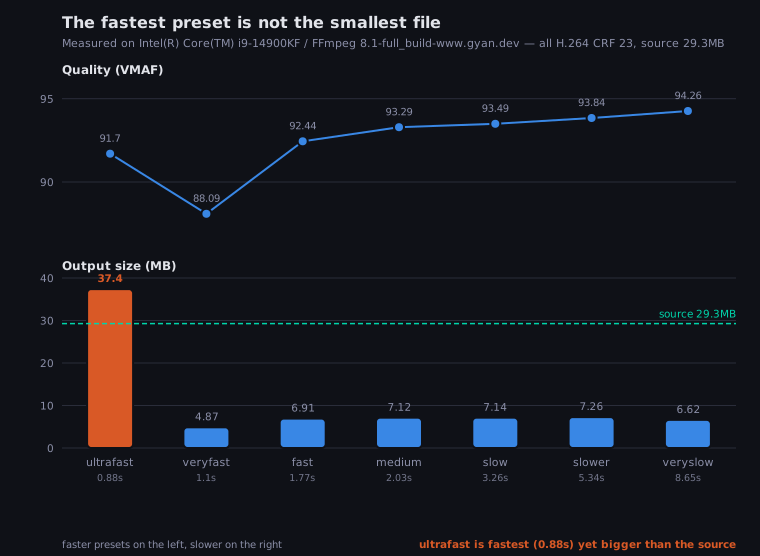
ultrafast is the fastest (0.88s), but its output is larger than the source file. If you pick a preset for speed alone, the “compressed” file can end up bigger than the original.
| Preset | Speed | File Size | Recommended For |
|---|---|---|---|
ultrafast |
Fastest | Largest | Real-time streaming |
veryfast |
Very fast | Smaller (measured -31.6%), lower quality | Live transcoding, quick tests |
fast |
Fast | Slightly smaller (measured -2.9%) | Quick turnaround needed |
medium |
Default | Balanced | General use |
slow |
Slow | Same as medium (measured +0.3%) | When you want slightly higher quality |
slower |
Very slow | Same as medium (measured +1.9%) | Long-term storage |
veryslow |
Slowest | Slightly smaller (measured -7.0%) | Maximum efficiency required |
Measured presets (H.264, CRF 23 fixed, same machine as above)
| Preset | Size | VMAF | Time |
|---|---|---|---|
| ultrafast | 37.40 MB | 91.70 | 0.88 s |
| veryfast | 4.87 MB | 88.09 | 1.10 s |
| fast | 6.91 MB | 92.44 | 1.77 s |
| medium | 7.12 MB | 93.29 | 2.03 s |
| slow | 7.14 MB | 93.49 | 3.26 s |
| slower | 7.26 MB | 93.84 | 5.34 s |
| veryslow | 6.62 MB | 94.26 | 8.65 s |
Three results go against the usual advice:
mediumtoslowdid not make the file smaller. It went from 7.12 MB to 7.14 MB (+0.3%), and encoding took 1.61x as long. Here the slower preset gave slightly better quality at about the same size (VMAF 93.29 to 93.49), not a smaller file. On this clip, choosingslowto save space did not pay off.ultrafastmade a file larger than the source: 37.40 MB from a 29.3 MB input. It gives up so much compression efficiency that the file can grow, even at CRF 23.- Quality did not stay the same. At one fixed CRF, VMAF ranged from 88.09 to 94.26, a spread of more than six points. CRF does not keep quality constant across presets.
For general use, choose medium. Pick a slower preset when you want a little more quality. Only veryslow made the file smaller here (-7.0%), and it took over four times as long as medium.
H.264 vs H.265: Which to Choose?
| Aspect | H.264 (libx264) | H.265 (libx265) |
|---|---|---|
| Compatibility | Nearly universal (phones, TVs, browsers) | Moderate (older Android; browser support depends on the OS and device) |
| Compression | Standard | 26–35% smaller at equal VMAF (measured, see below) |
| Encoding speed | Fast | ~1.9× slower at the same preset (measured) |
| Software playback | Universally supported | Widely supported; some players need additional codec |
| Recommended CRF | 18–28 | 20–30 (in the test above, a value about 2 higher than H.264’s gave a similar VMAF) |
| Best for | Web delivery, social media, broad audiences | Personal storage, space-saving, controlled environments |
Is H.265 really 40–50% smaller?
The figure you often see is 40–50%. On the test clip, the difference was 26–35%. Comparing the two codecs at the same CRF number tells you little, because their CRF scales differ. So both were encoded at a range of CRF values and compared where their VMAF scores match. The H.264 column is linearly interpolated from the measured H.264 results.
| VMAF | H.265 | Equivalent H.264 | H.265 smaller by |
|---|---|---|---|
| 83.53 | 1.60 MB | 2.46 MB | 34.9% |
| 87.27 | 2.20 MB | 3.25 MB | 32.4% |
| 90.03 | 3.04 MB | 4.32 MB | 29.5% |
| 92.94 | 4.94 MB | 6.79 MB | 27.2% |
| 94.86 | 7.96 MB | 10.80 MB | 26.3% |
H.265’s advantage shrinks as quality rises: 34.9% at VMAF 83, down to 26.3% at VMAF 95. So archiving at high quality is where H.265 saves the least. It saves the most at low bitrates.
Combining Resolution Downscaling
Lowering the resolution multiplies the savings you get from compression.
# 4K → 1080p + H.265
ffmpeg -i input_4k.mp4 -c:v libx265 -crf 26 -preset medium \
  -vf scale=1920:-2 -c:a aac -b:a 128k output_1080p.mp4

# 1080p → 720p + H.264 (social media)
ffmpeg -i input_1080p.mp4 -c:v libx264 -crf 26 -preset fast \
  -vf scale=1280:-2 -c:a aac -b:a 96k output_720p.mp4
In
-vf scale=1280:-2, the-2keeps the aspect ratio and rounds the height to the nearest even number. Use-2instead of-1to avoid codec errors.
Audio Optimization
Audio can be a noticeable part of the file size.
# Drop audio entirely (video only)
ffmpeg -i input.mp4 -c:v libx264 -crf 23 -an output.mp4

# Convert to mono (effective for voice-only content)
ffmpeg -i input.mp4 -c:v libx264 -crf 23 -c:a aac -ac 1 -b:a 64k output.mp4
Audio size reference: 128k stereo ≈ 0.9 MB/min | 96k ≈ 0.7 MB/min | 64k mono ≈ 0.5 MB/min
Option Reference
| Option | Meaning | Recommended Value |
|---|---|---|
-c:v libx264 |
H.264 encoder | Best compatibility |
-c:v libx265 |
H.265 encoder | When size matters more than speed |
-crf N |
Quality factor (0–51) | H.264: 18–28 / H.265: 20–30 |
-preset NAME |
Speed vs. compression | medium default; slower ones for a little more quality |
-b:v Nk |
Video bitrate target | 720p: 1500k / 1080p: 4000k / 4K: 15000k |
-b:a Nk |
Audio bitrate | Stereo: 128k–192k / Voice: 64k–96k |
-vf scale=W:-2 |
Resize video | scale=1280:-2 (width=1280, even height) |
-movflags +faststart |
Moves the file’s index (moov atom) to the start | Playback on the web starts sooner (recommended) |
Troubleshooting
Problem 1: Unknown encoder 'libx265'
Cause: Your FFmpeg build was made without libx265.
Fix: Run ffmpeg -h encoder=libx265. If it prints Codec 'libx265' is not recognized by FFmpeg., install a build that includes libx265:
brew install ffmpeg          # macOS
sudo apt install ffmpeg      # Ubuntu/Debian
Problem 2: Encoding Is Extremely Slow
Cause: -preset veryslow/slow on high-resolution video, or H.265 on older hardware.
Fix: Switch to medium or fast. H.265 is slower by nature, so use H.264 if time matters.
Problem 3: Output File Is Larger Than Expected
Cause: The CRF is too low, or the preset is ultrafast, which compresses poorly.
Fix: Raise the CRF by 2–4, and use medium rather than ultrafast. In the test above, presets slower than medium did not make the file much smaller:
ffmpeg -i input.mp4 -c:v libx264 -crf 26 -preset medium -c:a aac -b:a 128k output.mp4Problem 4: width not divisible by 2 or height not divisible by 2
Cause: The scale filter produced an odd width or height. For example, scale=1280:-1 can give 1280x719.
Fix: Use -2 for the side FFmpeg calculates: -vf scale=1280:-2 or -vf scale=-2:720. The -2 rounds that side to an even number.
Problem 5: Pass 1 Finished But No Output File
Cause: This is normal. Pass 1 uses -f null /dev/null on purpose: it only writes the stats log file, not a video.
Fix: Run the pass 2 command to make the actual output.
FAQ
Q1. Should I use CRF mode or bitrate mode?
A. Use CRF for almost everything. It keeps the quality consistent across simple and complex scenes. Use bitrate mode only when you need strict control of the file size, for example to stay under a platform’s bitrate cap.
Q2. Is CRF 23 the best setting for any video?
A. No. CRF 23 is only the encoder’s default. Fast action may need CRF 20, and animation with flat colors can go down to CRF 18–22. Always check the actual output.
Q3. Should I copy or re-encode the audio?
A. Use -c:a copy to keep the audio exactly as it is. Use -c:a aac -b:a 128k if you also want a smaller audio track. Re-encoding always loses a little quality.
Q4. Can I use GPU encoding on macOS?
A. Yes. VideoToolbox, Apple’s hardware video encoding framework, is available on Apple Silicon and Intel Macs:
ffmpeg -i input.mp4 -c:v h264_videotoolbox -b:v 4000k -c:a aac output.mp4There is no -crf option. Set the bitrate with -b:v, or on Apple Silicon Macs set a quality level with -q:v (1–100, higher is better).
Q5. How do I compress all videos in a folder at once?
A. Use a loop in a bash or zsh terminal:
for f in *.mp4; do
  ffmpeg -i "$f" -c:v libx264 -crf 23 -preset medium -c:a aac -b:a 128k "compressed_${f}" -y
done